Namespaces
.Net Core organizes code libraries into subject areas called Namespaces. The process begins with identifying the Namespaces (libraries) required for the procedure being created. Namespaces provide distinction to the objects and methods that exist in a code library. As a best practice, Namespaces typically start with the name of the company that created the code library. This prevents naming conflicts for objects that share a common name, but were created by different software providers.
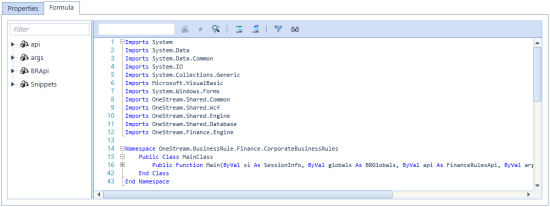
In an effort to keep coding syntax as terse as possible, .Net Core allows the user to specify common Namespaces to use at the top of a Business Rule. These lines are preceded by the key word Imports. Adding Imports Statements prevents having to type an object’s fully qualified name within a Namespace.
All Business Rules are prepopulated with both the commonly used Microsoft Namespaces as well as the OneStream specific Namespaces. For example, adding the statement Imports System.Math to a Business Rule enables access to objects in the System.Math Namespace. Instead of typing System.Math.Round(100.05,0), type Round(100.05,0).
The example below shows the Namespace references used in a standard Extensibility Rule.
Namespaces Defined
OneStream is a large and sophisticated software platform and consequently a great deal of effort went into organizing the code base into a hierarchical set of Namespaces. This section defines the Namespace hierarchy and explains the primary purpose of the code libraries in each Namespace. It is important to understand structure and meaning of the platform Namespaces because most API methods accept and return objects defined within specific Namespaces. By understanding the structure of the Namespace hierarchy, developers can browse for objects using intelli-sense in the syntax editor.
Namespace Hierarchy
The hierarchy below denotes the platform Namespaces and the object libraries contained within them. This hierarchy is explored from within the Business Rule syntax editor by typing OneStream. and navigating through the intelli-sense popup lists. This technique helps find objects to pass into an API function, objects returned from an API function, or common helper classes available in the platform.
-
OneStream (Root Namespace) -
OneStream.BusinessRule -
OneStream.BusinessRule.Finance -
OneStream.BusinessRule.Parser -
OneStream.BusinessRule.Connector -
OneStream.BusinessRule.ConditionalRule -
OneStream.BusinessRule.DerivativeRule -
OneStream.BusinessRule.DashboardDataSet -
OneStream.BusinessRule.DashboardExtender -
OneStream.BusinessRule.DashboardStringFunction -
OneStream.BusinessRule.Extender -
OneStream.Client -
OneStream.Client.SharedUI -
OneStream.Client.SharedUI.FinanceMsgStrings -
OneStream.Client.SharedUI.FinanceUIStrings -
OneStream.Client.SharedUI.GeneralMsgStrings -
OneStream.Client.SharedUI.GeneralUIStrings -
OneStream.Client.SharedUI.StageMsgStrings -
OneStream.Client.SharedUI.StageUIStrings -
OneStream.Client.SharedUI.StringResourceFileType -
OneStream.Client.SharedUI.StringResourceHelper -
OneStream.Client.SharedUI.XFStrings -
OneStream.Finance -
OneStream.Finance.Engine -
OneStream.Finance.Engine.DataApi -
OneStream.Finance.Engine.EvalDataBufferDelegate -
OneStream.Finance.Engine.FinanceRulesApi -
OneStream.Finance.Engine.IAccountApi -
OneStream.Finance.Engine.ICalcStatusApi -
OneStream.Finance.Engine.IConsApi -
OneStream.Finance.Engine.ICubesApi -
OneStream.Finance.Engine.IDimensionsApi -
OneStream.Finance.Engine.IEntityApi -
OneStream.Finance.Engine.IFlowApi -
OneStream.Finance.Engine.IFunctionsApi -
OneStream.Finance.Engine.IFxRatesApi -
OneStream.Finance.Engine.IMembersApi -
OneStream.Finance.Engine.IPovApi -
OneStream.Finance.Engine.IScenarioApi -
OneStream.Finance.Engine.ITimeApi -
OneStream.Finance.Engine.IUDApi -
OneStream.Finance.Engine.IViewApi -
OneStream.Finance.Engine.IWorkflowApi -
OneStream.Stage -
OneStream.Stage.Engine -
OneStream.Stage.Engine.Parser -
OneStream.Stage.Engine.ParserDimension -
OneStream.Stage.Engine.TransformerDataCache -
OneStream.Stage.Engine.Transformer -
OneStream.Stage.Engine.TransformerDimension -
OneStream.Stage.Engine.TransformRuleCache -
OneStream.Shared -
OneStream.Shared.Engine -
OneStream.Shared.Engine.ExternalWcfClient -
OneStream.Shared.Engine.TaskActivityStepWrapperItem -
OneStream.Shared.Database -
OneStream.Shared.Database.DbConnInfo -
OneStream.Shared.Common -
OneStream.Shared.Common(Various Constants, Helper Classes & Data Transfer Objects ‘DTO’ ) -
OneStream.Shared.Wcf -
OneStream.Shared.Wcf(Various Constants & Data Transfer Objects ‘DTO’)
Microsoft Financial Calls
Financial calls are part of the Microsoft.VisualBasic namespace, and can be used to for calculations such as:
-
Depreciation
-
Present and future values
-
Interest rates
-
Rates of return
-
Payments
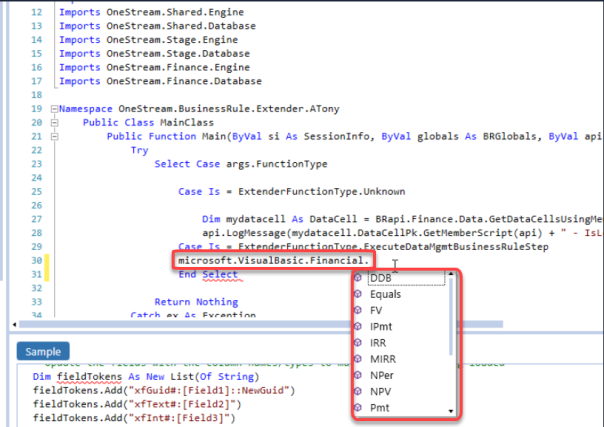
These functions are available to anyone with access to Business Rules. They can be explored within the Business Rule syntax editor by typing Microsoft.VisualBasic.Financial then navigating through the intelli-sense popup lists.
To view all methods from the Microsoft.Visual Basic Financial class used in a Business Rule:
-
Navigate to the Business Rule Editor:
-
In the OneStream Software application, click the Application tab.
-
Under Tools, click Business Rules.
-
Expand the appropriate Business Rules category or click Search on the toolbar.
-
-
Click the Formula tab.
-
In the editor window, type Microsoft.Visualbasic.Financial.
A list of methods displays.